
HEART Hub: the owner's manual#
How to watch your devices at heartcortex.ai, change their settings, ask an AI about them, and keep them private.
HEART Hub is free and its code is open (Apache-2.0). Everything in this manual also works on a monitor server of your own. The rules behind it are in the HEART Hub profile.
The screenshots are from a real device: Docker Engine with a HEART built in, running on a test server and reporting to heartcortex.ai, on 12 November 2026. They are for illustration only: the site may change, so what you see may look a little different.
| Section | You will learn to |
|---|---|
| 1. How it works | Understand who sends what, and where |
| 2. Sign in | Sign in with an emailed code, and manage your addresses |
| 3. Register a device | Make a device yours with its claim code |
| 4. The device page | Read its health, figures, problems and history |
| 5. Emails you will get | Know why the site writes to you |
| 6. Change a setting from the site | Change a setting the device offers, such as a CPU limit |
| 7. Connect an AI model | Add Claude or another model, with your own API key |
| 8. Ask AI | Ask a model about a device, in plain words |
| 9. Approvals | Let a device ask your permission for a change |
| 10. Share or forget a device | Make a page private, shared by link or public, or delete it |
| 11. What the site keeps | Know what is stored, and for how long |
| 12. Troubleshooting | Fix the usual problems |
1. How it works#
Most devices sit behind a home or office router, where nobody outside can reach them. So the device reaches out instead:
- The device reports its health to the monitor site, every 30 seconds by default. Reporting is off until its maker or owner turns it on.
- You register it once, with the claim code only the device knows.
- You watch its page from anywhere. It is private until you choose to share it.
- If it goes silent, the site emails you.
What a device sends: its health (Healthy, Degraded or Failing), its alerts with their standard fault codes, and, only if it chooses to, a few figures and settings. What it never sends: readings it did not choose to share, names, logs or anything private.
Changes go the other way only when you ask. The site never invents a change. When you change a setting, the site signs your request, and the device checks the signature, the time and the allowed range before it acts. It may still refuse.
2. Sign in#
There are no passwords. Proving you can read your inbox is the only way in.
- Open the menu at the top right of any page, and choose Sign in.
- Enter your email address. The same form makes a new account the first time.
- A 6-digit code arrives by email from
support@heartcortex.ai. Type it in. It works once, for 10 minutes.
You stay signed in for 30 days in that browser.
Never give a code to anyone. The site will never ask you for it, except on its own sign-in page.
Limits, so nobody can guess a code: at least 30 seconds between two codes to one address, at most 5 codes an hour, and 15 wrong tries per code. If you hit a limit, wait and try again.
Your account#
Choose Account: emails and sign-ins in the menu.
- Up to 10 email addresses can open one account. The primary address is where emails go.
- To change your address: add the new one (a code is sent to it), make it primary, then remove the old one. Your devices stay with the account.
- Signed-in browsers are listed. You can sign out any one of them, or all the others. A sign-in from a new browser or country is emailed to you.
3. Register a device#
When reporting is first turned on, the device makes a device ID (16 characters) and a claim code (like AB3CD-EF4GH-JK5LM-NP6QR), and shows them once: on its label, screen or console. For example, the Python template prints:
HEART Hub: register this device at https://heartcortex.ai/register?id=4722a72726e30b58 with claim code AB3CD-EF4GH-JK5LM-NP6QR- Open the address the device gave you, or choose Register a device in the menu.
- Check the Device ID, enter the Claim code, and give it a name you will recognise.
- Press Register. The device's page opens.
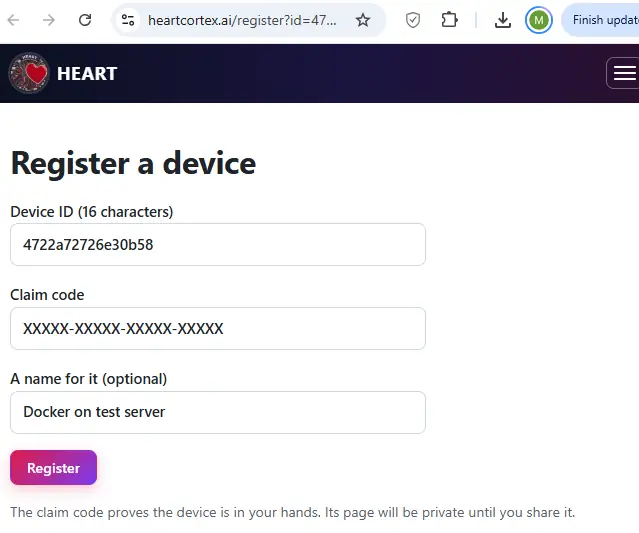
- The claim code proves the device is in your hands. Keep it private until you register. After 5 wrong codes for one device, the site waits an hour.
- Once registered, the device is yours. Nobody else can register it until you forget it (Section 10).
- A device that is never registered leaves no trace beyond its first hello, which is deleted after 30 days.
All your devices are listed under My devices in the menu.
4. The device page#
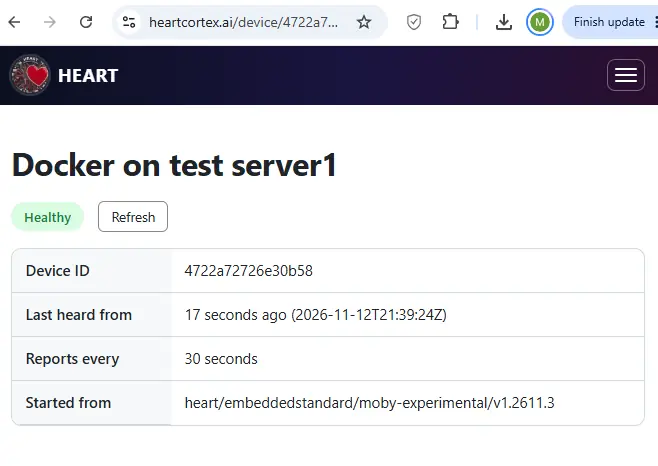
At the top:
| Status | Meaning |
|---|---|
| Healthy | The device is doing its main job |
| Degraded | It works, but something needs attention |
| Failing | Its main job has stopped |
| Unknown | It cannot tell |
| Not heard from | No report for three intervals (at least 90 seconds): it may be off, offline, or its HEART may have stopped |
| Waiting for its first report | Registered, but nothing has arrived yet |
- Last heard from says when the last report came, and Reports every how often the device reports.
- Asleep until appears for a device that said it would sleep, such as a battery sensor. It is not "Not heard from", and you get no email, until its sleep and a short grace have passed.
- Started from is the template the device was built from, such as
heart/embeddedstandard/python/v1.2611.3. - Refresh reloads the page. The page does not refresh by itself.
Figures#
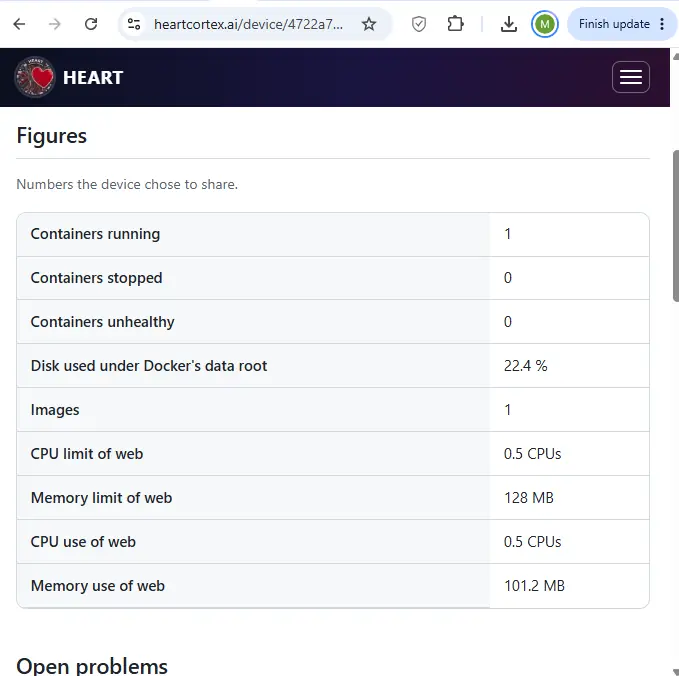
Figures are numbers the device chose to share, such as CPU and memory use. They appear only if the device offers them. Here Docker shares how many containers run, the disk used, and the CPU and memory limits and use of the container it calls web. The site keeps two days of figures, so an AI model can see a trend (Section 8).
Open problems and recent history#
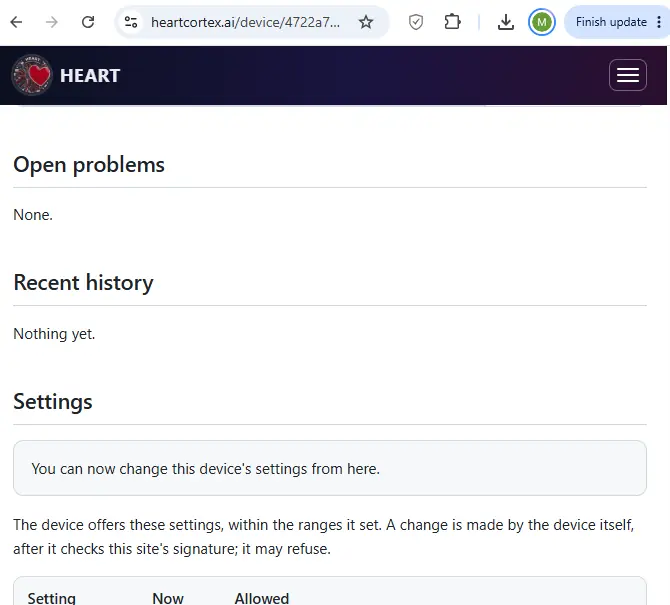
- Open problems lists the alerts that are still open. Each has a standard fault code, such as
system.main-function-lost, explained in plain words. On heartcortex.ai the code links to its own page: likely causes, how to fix it, what the HEART does by itself, and when to call service. When you write a code down, in a ticket or an email, write itHEART system.main-function-lost. A device with a small screen may show the short H-number instead, such asH-01001: look it up at /system-code. - Recent history lists the alerts that were resolved. Alerts are kept for 90 days.
5. Emails you will get#
All emails come from support@heartcortex.ai. They hold your device's name and a link to its page, and nothing else from the device.
| When | |
|---|---|
| Your code to sign in | You asked to sign in |
| "<device> has gone quiet" | A device stopped reporting. Sent once per silence. |
| A code to confirm a change | You asked to change a setting (Section 6) |
| A device asks for your approval | A device you allowed to ask wants your yes (Section 9) |
| A new sign-in | Your account was opened from a new browser or country |
If an email does not arrive within a minute or two, look in your spam or junk folder (Section 12).
6. Change a setting from the site#
Some devices offer settings you may change from the site, each within a range the device set itself. Docker with a HEART, for example, offers the CPU and memory limits of each container its owner labelled.
Turn it on, once per device#
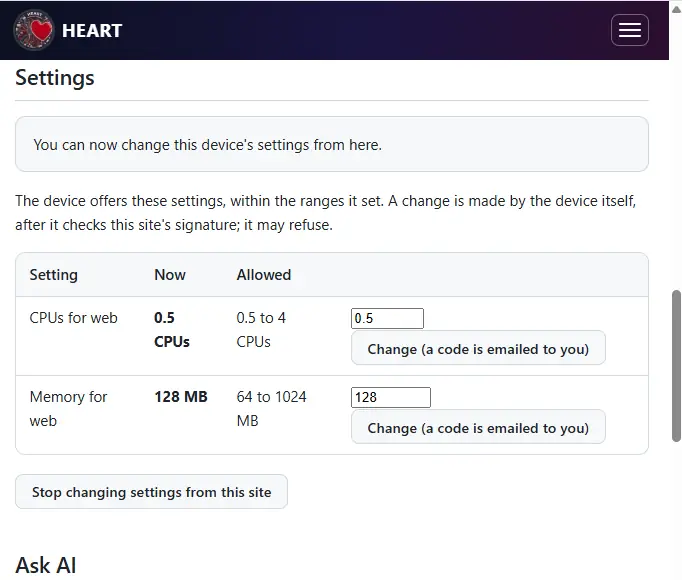
Changing settings from the site is off by default. On the device's page, under Settings, press the button to turn it on. The page then says "You can now change this device's settings from here."
Make a change#
- Under Settings, type the new value next to the setting, inside the Allowed range. Here, 1 for "CPUs for web", which allows 0.5 to 4.
- Press Change (a code is emailed to you).
- Type the 6-digit code from the email. Signing in is not enough: each change needs its own fresh code, bound to that device, setting and value.
- The site signs your request. The device collects it with its next report, usually within a few seconds: while you are changing a setting, the site asks the device to report every 2 seconds.
- The device checks everything again before acting:
- the site's signature, with the key the device saved when it first said hello;
- that the request is for this device;
- that it is at most 5 minutes old, and not seen before;
- that the setting is one it offers, and the value is in its own range.
- The page shows the result next to your request: Applied, or Refused with the reason.
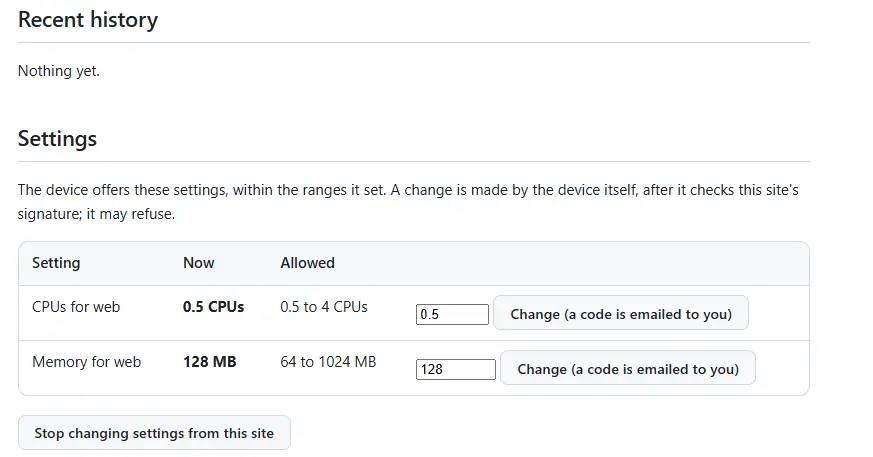
On 12 November 2026, the owner of the Docker host above changed "CPUs for web" from 0.5 to 1. Docker applied it 23 seconds after the code was entered, without restarting the container.
Limits: a value outside the range is refused before any code is sent. A device takes at most 30 requests a day, and a request with no answer expires after 10 minutes. Wait at least 30 seconds between two changes, because codes to one address are at least 30 seconds apart.
To stop, press Stop changing settings from this site.
7. Connect an AI model#
Choose AI models and API keys in the menu. You can connect a model with your own API key, to ask questions about your devices.
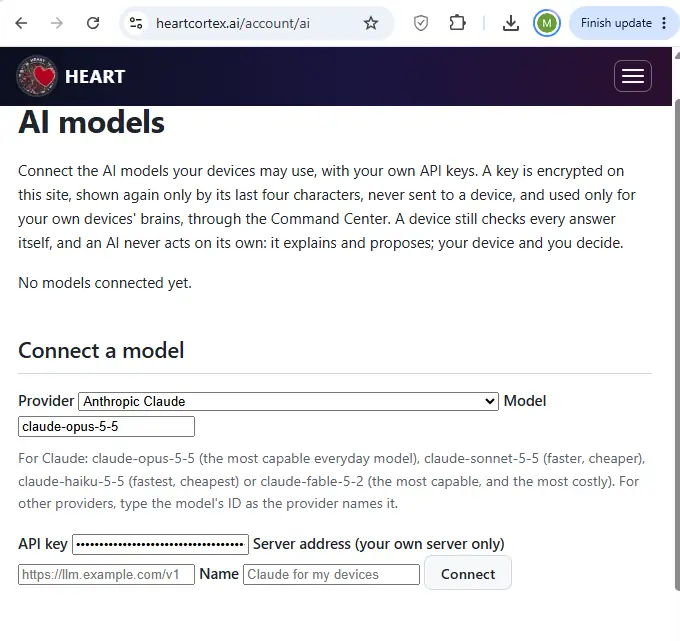
- Choose the Provider. Anthropic Claude is the default. You can also choose OpenAI, Google Gemini, Mistral, DeepSeek, xAI Grok, Groq, OpenRouter or Together AI, or your own server that speaks the OpenAI API (Ollama, vLLM, LM Studio and others), with its address.
- Type the Model. For Claude:
claude-opus-5-5, the most capable everyday model (the default);claude-sonnet-5-5, faster and cheaper;claude-haiku-5-5, the fastest and cheapest;claude-fable-5-2, the most capable, and the most costly.
For other providers, type the model's ID as the provider names it.
- Paste your API key. For Claude, make one at console.anthropic.com, under API keys.
- Give it a Name if you like, and press Connect.
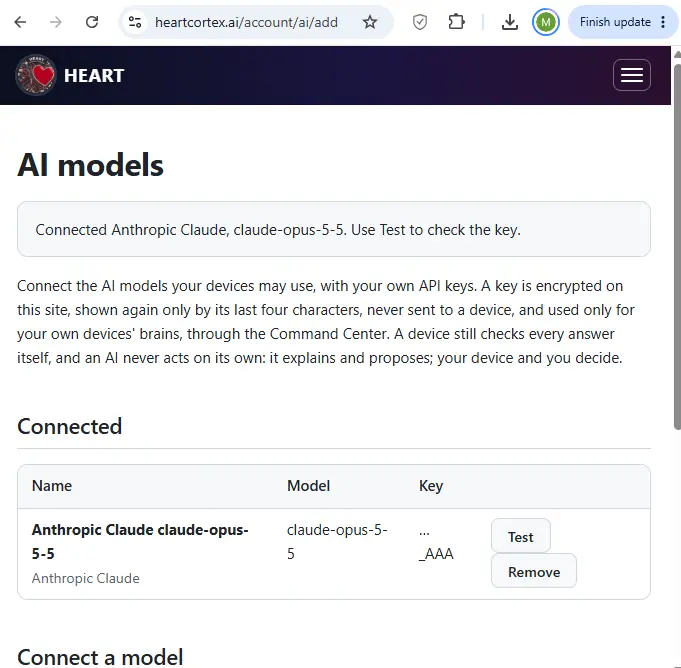
- Press Test to check that the key works.
How your key is protected:
- It is encrypted on the site, and shown again only by its last four characters.
- It is never sent to a device.
- It is used only for your own devices: for Ask AI, and for their brains through the Command Center.
- You pay your provider for what the model uses. Remove deletes the key from the site.
8. Ask AI about a device#
With a model connected, every device page has Ask AI.
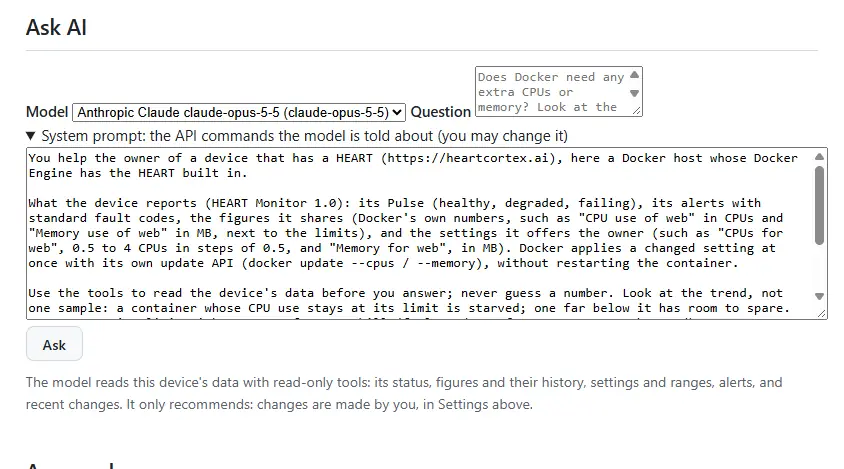
- Choose the Model.
- Type your Question in plain words, such as "Does Docker need any extra CPUs or memory?".
- Press Ask. An answer takes a few seconds to a minute.
What the model can see. It reads the device's data only through six read-only tools:
| Tool | What it reads |
|---|---|
get_device_status | Health, last report, open alerts |
get_figures | The figures the device shares |
get_figure_history | A figure's values over up to two days, to see a trend |
get_settings | The settings the device offers, and their ranges |
get_alerts | Open and recent alerts, with their fault codes |
get_recent_changes | The changes asked so far, and their results |
The line under each answer says which tools the model used.
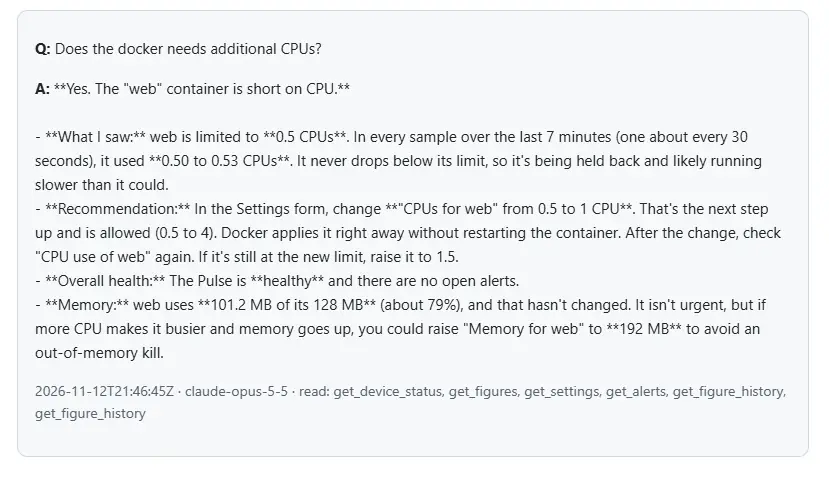
It only recommends. A model cannot change anything. To act on its advice, make the change yourself in Settings (Section 6), where the device checks it again.
The system prompt is yours. Open System prompt to see exactly what the model is told about the device and its API. You may change it for one question. Your last five questions and answers stay on the page, and are kept for 30 days.
9. Approvals: a device asks you first#
Some devices work out a change on their own, such as a fix their HEART or an AI model proposed. With approvals on, such a device can ask for your yes on its page, from wherever you are.
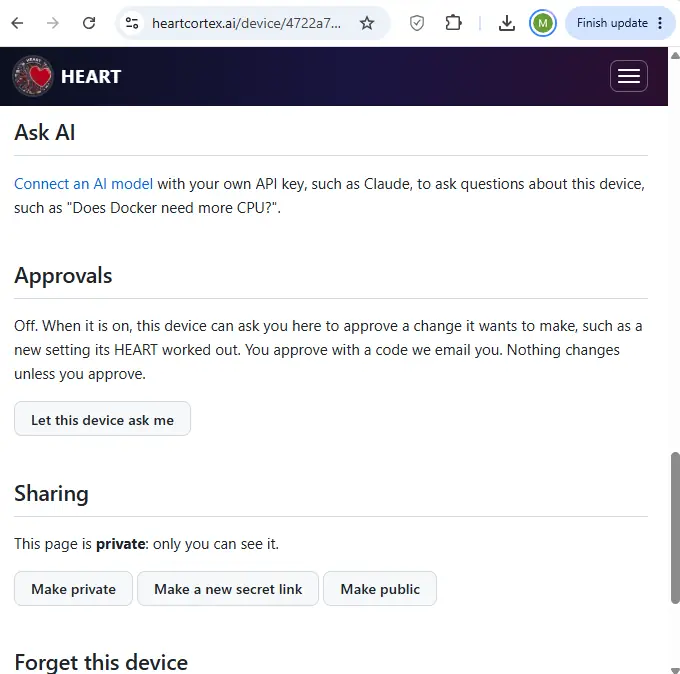
- Approvals are off by default. To turn them on for one device, press Let this device ask me.
- When the device asks, you get an email. The page shows what would change, in plain words, such as "Ramp rate: 2.0 → 1.6 °C per minute".
- To approve, press Approve and type the code emailed to you. The code works only for that one request.
- To deny, press Deny. No code is needed, because saying no is always safe. Doing nothing changes nothing, and the request lapses.
- The device gets your decision with its next report, checks the site's signature, and only then acts.
A change in the physical world, such as moving a valve, can be approved from the site only if that was also turned on at the device itself.
10. Share or forget a device#
Sharing#
| Choice | Who can see the page |
|---|---|
| Private (the default) | Only you. Anyone else is told "not found", so the page does not even say the device exists. |
| Secret link | You, and anyone with the link. Make a new secret link cancels the old one. |
| Public | Anyone who knows the device ID |
Only you can change settings, ask AI or approve, whoever can see the page.
Forget this device#
At the bottom of the page, tick Delete its page and everything stored about it, and press Forget. Its page, alerts, figures, requests, Ask AI answers, name and owner are deleted. The device can be registered again with its claim code.
11. What the site keeps about you#
| What | For how long |
|---|---|
| Your email addresses and account | Until you remove them |
| A device's latest health, figures and settings | While it is registered |
| Figure history, for Ask AI | 2 days |
| Alerts | 90 days |
| Your Ask AI questions and answers | 30 days |
| Your API keys, encrypted | Until you remove them |
| Sign-in codes and sessions | Stored only as hashes, so a stolen database cannot be used to sign in |
The site never keeps a device's readings, logs or anything the device did not choose to share.
12. Troubleshooting#
| Problem | What to do |
|---|---|
| The code email does not arrive | Look in spam or junk. Wait at least 30 seconds before asking again. After 5 codes in an hour, wait an hour. |
| "Not found" on a device page | The page is private and you are not signed in, or you are signed in to another account. Sign in with the address that registered it. |
| The claim code is refused | Check it against the device's label or console. After 5 wrong tries, the site waits an hour. If someone else registered it, they must forget it first. |
| "Waiting for its first report" | Check that reporting is on in the device, and that it can reach https://heartcortex.ai. |
| "Not heard from" | The device is off, offline, or its HEART stopped. Its page returns to its health with the next report. A device that sleeps should say so in its report (sleepSec): see HEART for IoT. |
| A change says "Refused" | The reason is shown: for example, the value is outside the device's own range, or the request was more than 5 minutes old when it arrived. Try again. |
| A change stays waiting | The device has not reported since. A request with no answer expires after 10 minutes. |
| Ask AI gives an error | Press Test on the AI models page to check the key, and check your provider account has credit. |
| The page looks old | Press Refresh. |